Plex Media Server Setup Guide
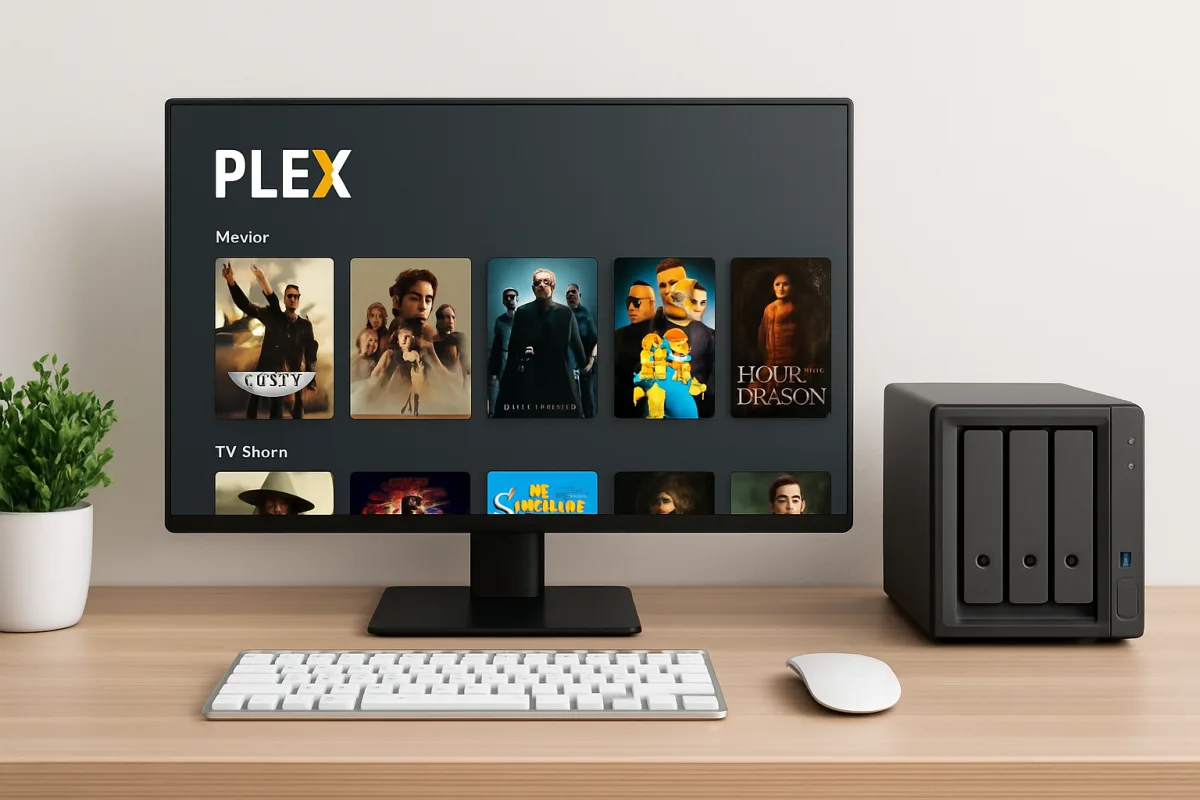
Setting up a Plex Media Server involves several key steps: installing the Plex Media Server software on your chosen device, adding your media libraries, and configuring remote access if desired. Begin by downloading the software from the Plex website, then follow the installation instructions specific to your operating system. Once installed, you can add media folders and customize settings to optimize performance and accessibility. For remote access, ensure your network settings allow for external connections, which may involve configuring your router's port forwarding settings.
Quick Summary
This guide provides a comprehensive overview of setting up a Plex Media Server, including software installation, media library configuration, and remote access setup. Follow these steps to create a personal media hub that streams your content to various devices.
Curator Notes
To set up your Plex Media Server, start by selecting a suitable device, such as a dedicated PC, NAS (Network Attached Storage), or even a Raspberry Pi. Download the Plex Media Server software from the official Plex website and install it according to your operating system's guidelines. The installation process is straightforward, but ensure your device meets the minimum system requirements for optimal performance.
After installation, launch the Plex Media Server application and create an account if you don't have one. You will then be prompted to add your media libraries. This involves selecting folders that contain your movies, TV shows, music, and photos.
Plex will automatically organize and fetch metadata for your media, enhancing your viewing experience. Finally, if you wish to access your server remotely, configure your router to allow external connections by setting up port forwarding, enabling you to stream your media from anywhere.
Recommended Options
- Plex Media Server: Best for Users looking to create a personal media hub Offers a user-friendly interface and extensive compatibility with various devices. Signal checked: Highly rated by users for its ease of use and robust features. Alternative to consider: Emby
- Raspberry Pi Foundation Raspberry Pi 4: Best for Budget-conscious users wanting a compact server solution Affordable, low power consumption, and can run Plex efficiently. Signal checked: Popular among DIY enthusiasts for home media setups. Alternative to consider: Intel NUC
- Synology DiskStation DS220+: Best for Users needing a dedicated, reliable storage solution Provides excellent performance and built-in support for Plex. Signal checked: Highly rated in reviews for performance and ease of use. Alternative to consider: QNAP TS-451+
Best Sources
Videos and Community Signals
Thanks to Plex for sponsoring this video! Learn more about Plex Pro Week at: https://www.plex.tv/pro-week/ Setting up your own ...
00:00 - Introduction to creating a Plex Media Server on the UGREEN DXP2800. 01:26 - Docker & Plex Linux Server Overview.
Comparison
| Decision Point | Good Starting Choice | When to Go Further |
|---|---|---|
| Device Type | PC or Laptop for flexibility and power | NAS for dedicated storage and performance |
| Cost | Free software with optional premium features | Invest in hardware like NAS for better performance |
| Remote Access | Basic setup with easy configuration | Advanced network settings for optimal performance |
FAQ
Plex Media Server can run on various devices including Windows, macOS, Linux, NAS devices, and even Raspberry Pi.
Yes, Plex Media Server is free to use, but some features require a Plex Pass subscription.
Yes, you can access your Plex server remotely by enabling remote access in the settings and configuring your network.